
Yet Another Running App!
YARA! user guide
A rhythm of your own.
From your first routine to your next plan. Get to know Today, Plan, Activity and Goals.
1. Getting started
- Open YARA! and choose Build my routine.
- Choose preferred days, available time, a comfortable duration and Mostly running, Run and walk or Mostly walking.
- Optionally connect Apple Health for existing running, walking and hiking workouts and their available effort ratings. You can explore with sample data first.
- Review your plan before applying it.
YARA! is designed for iPhone with iOS 26 or later. Apple Health access is optional and read-only, and no account is needed.
2. Understand training load in Today
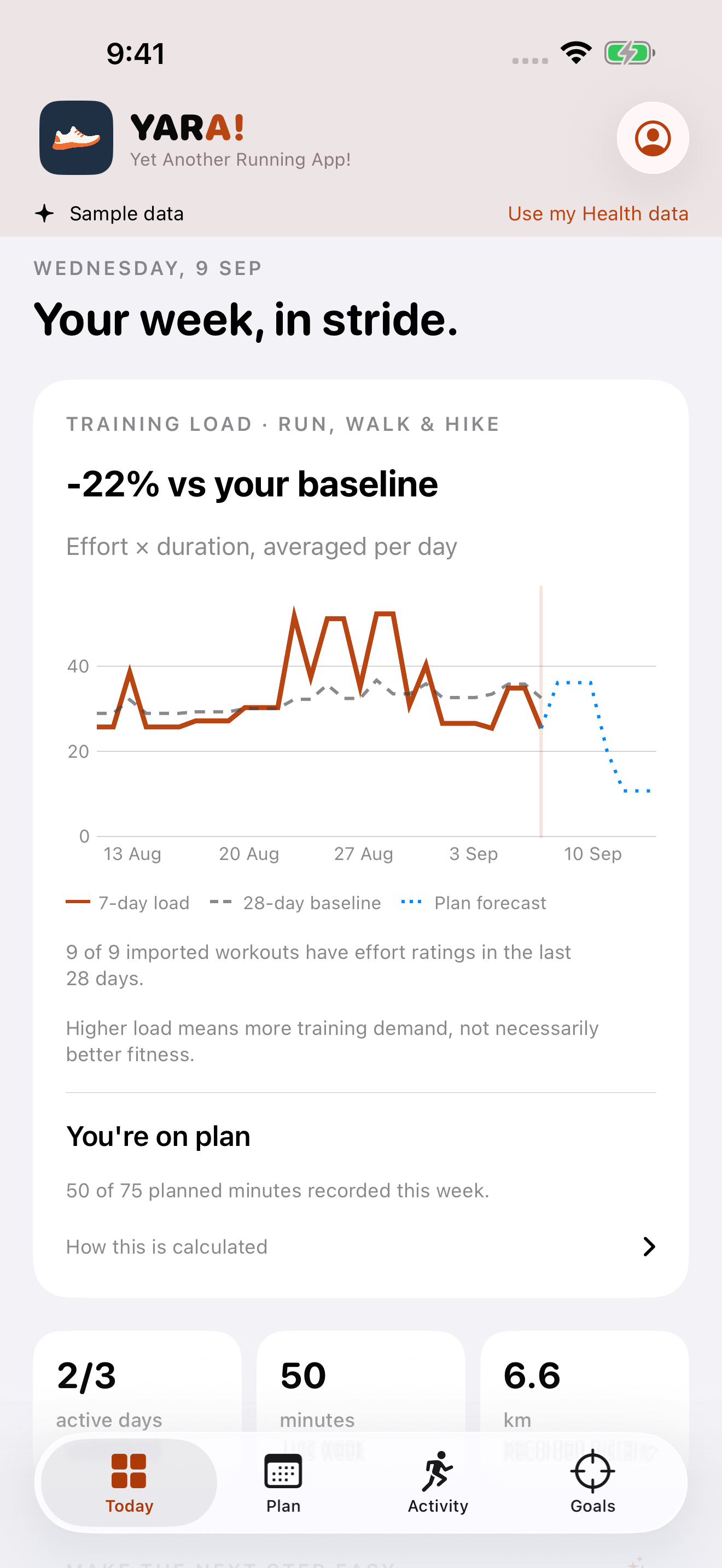
Today shows YARA training load. For each imported run, walk or hike with an available Health effort rating, YARA multiplies active workout minutes by the 1–10 rating. It compares simple rolling 7-day and 28-day averages in load units per calendar day.
- 7-day trend: your recent average load.
- 28-day baseline: a longer comparison period.
- Plan forecast: the next seven days if saved, unmatched sessions are completed. Easy, longer and brisk sessions use labelled planning assumptions rather than measured future effort.
This is YARA’s descriptive calculation, not Apple Fitness’s exact training-load score. It is not a fitness, readiness, injury-risk or recovery score, and a higher value does not necessarily mean improvement.
A window remains unknown if imported history is too short or any included workout lacks a valid effort rating. Days with no imported workout count as zero. A current-day total can still be partial. Check the displayed effort-rating coverage and refresh status when interpreting the graph.
3. Prepare, review and edit a plan
- Open Plan and select a remaining day.
- Check in: As usual, Ready for a little more, Low energy or Rest.
- Set the time you have available.
- Tap Prepare a new draft.
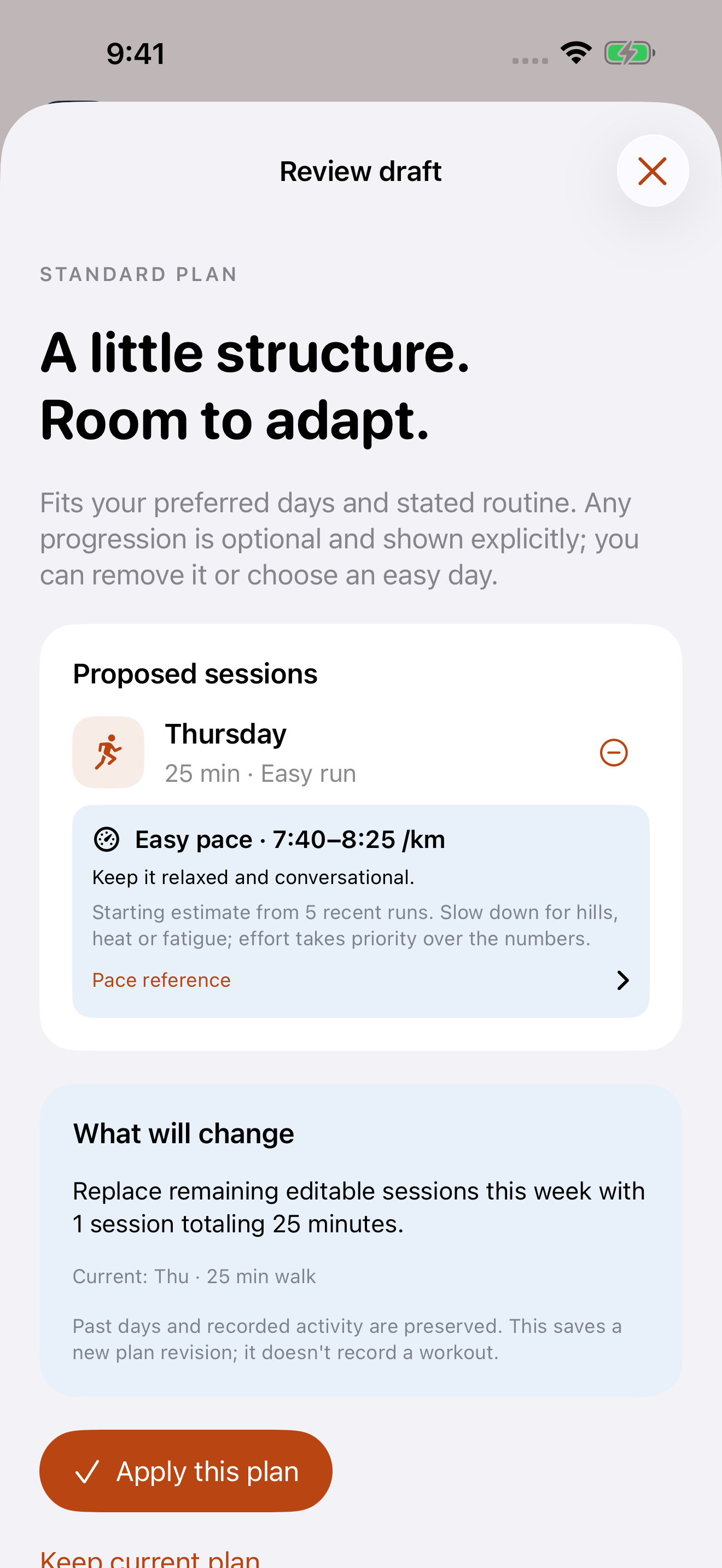
- Review every proposed session and the summary of changes, then tap Apply this plan if you want it.
A generated draft revises the remaining current week. It respects recorded activity, rest check-ins, available time and recovery spacing. Past activity is preserved, and nothing changes until you apply the draft.
Use Add a session or a future session’s Options → Edit session to add or edit your own easy run, walk or hike from 5–180 minutes. Manual plans change YARA!’s schedule, never Apple Health. Editing an automatic progression turns it into an easy session. A later generated draft can replace future manual entries, but only after you review and apply it.
When AI is unavailable, standard local planning remains available. The screenshot below truthfully shows standard planning using sample data.
4. Choose goals and your weekly rhythm
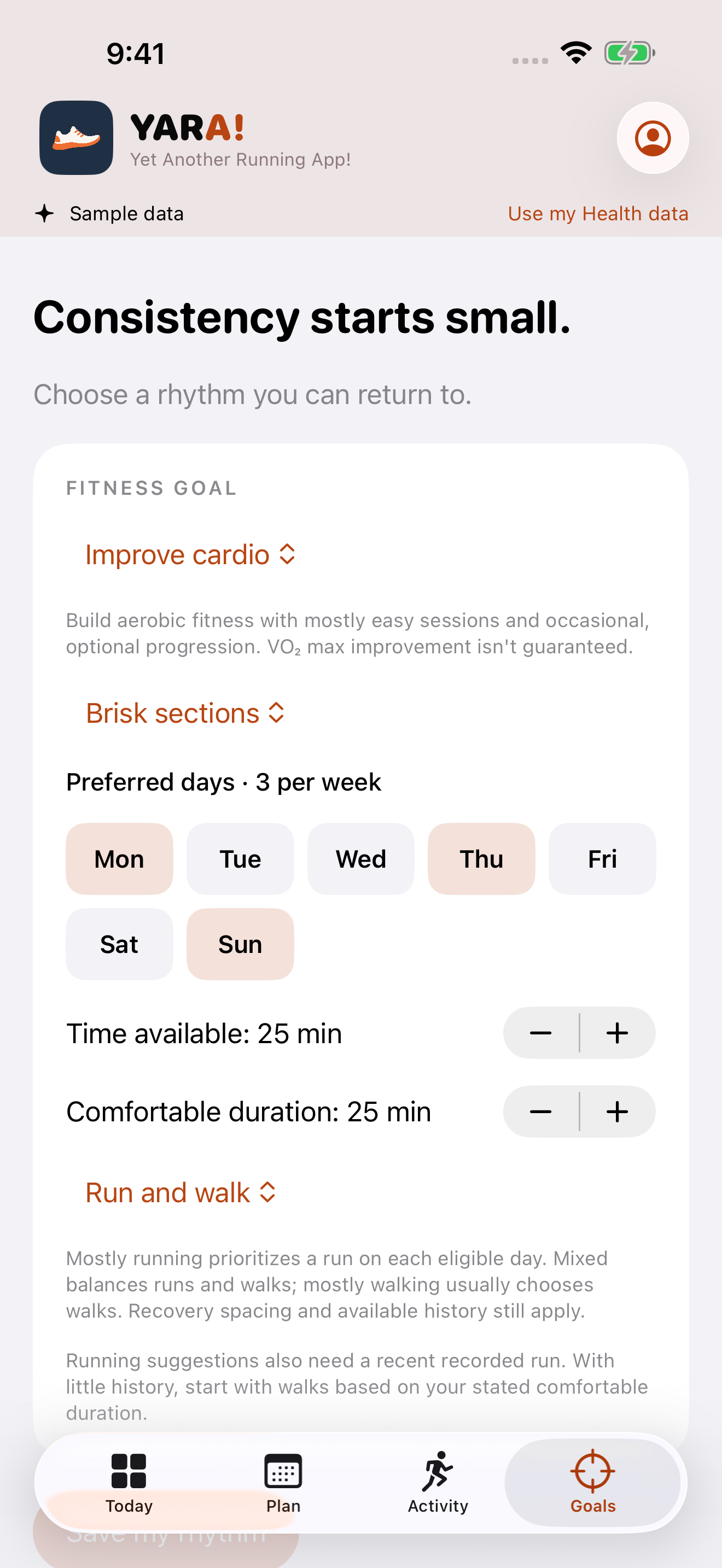
Choose Build consistency, Improve cardio, Run my first 5K, Run my first 10K or Improve running pace. You can also set preferred days, comfortable duration and activity mix.
Select all seven days if you want a daily rhythm. YARA! can fill remaining available days with eligible runs and easy walks between them while respecting recorded activity, rest and the weekly time budget. Runs still need recovery spacing and suitable history.
The 5K and 10K goals show your longest usable recent run toward the distance. They allow higher duration settings but do not automatically make sessions longer or create a dated race program. The pace goal keeps a starting baseline and compares it with rolling recent pace when enough usable runs are available. No completion date, faster race result or improvement is guaranteed.
Cardio and running goals can allow a slightly longer easy run or short moderate sections when history, a current Health refresh, readiness and spacing checks allow it. A progression request may still produce an easy plan.
Save your goals, then prepare a new plan. Saving goals does not silently replace your schedule.
5. Read running pace guidance
Eligible run cards can show duration, purpose, conversational effort and an estimated pace range. YARA! starts from the median whole-run pace of at least three usable runs from the last 28 days, after a Health refresh on the current day. A usable run must include valid distance and duration.
Easy ranges are deliberately slower than that recent median. Brisk ranges appear only for eligible short moderate sections; warm-up, recovery and cool-down stay easy. Values can display in minutes per kilometre or mile.
Treat pace as a starting estimate. It is YARA!’s heuristic, not a measured threshold, training zone or race prediction. Stops, terrain, heat, fatigue and mixed-effort workouts affect whole-run pace. Follow conversational effort and how you feel.
Saved pace guidance is a snapshot. Existing plans are not silently recalculated after later imports; prepare a new draft or edit a future run to obtain fresh guidance.
6. Browse and link your activity
In Activity, browse or filter by Run, Walk and Hike. YARA! imports the last 90 days of available matching workouts from Apple Health, including identifier, date, duration, optional distance, source and an associated recorded or estimated effort rating when available.
Use manual workout linking to associate a recorded workout with a planned session. Linking helps keep the plan connected to what you did; it does not rewrite the Health workout.
YARA! does not record workouts. Record with your usual workout app, let it save to Health, then refresh YARA!.
7. Connect Cardio Fitness, if you want
Cardio Fitness is a separate, optional Health connection. It reads existing VO₂ max records from the last 180 days, including date, value and source.
YARA! does not measure, generate or predict VO₂ max. Cardio Fitness remains separate from YARA training load and is not used as a readiness score. Choosing Improve cardio does not guarantee a change.
No records showing? There may be no recent records, or the records may be inaccessible. Apple Health does not let YARA! distinguish denied read permission from an empty history. Check Health permissions and refresh.
8. Use on-device guidance
On supported iPhones, Apple’s on-device model can explain your activity and help shape plan drafts. Relevant local activity, goals and your effective running planner guide provide context; YARA! does not send them to a remote AI service.
AI requires an Apple Intelligence-compatible iPhone, Apple Intelligence enabled, a ready downloaded model, and a supported language and region. iOS 26 alone is not enough. The dashboard and standard local planner work without the model; there is no cloud fallback.
AI receives options already chosen by YARA!’s rules and cannot override the activity mix, dates or safety limits. Generated drafts still pass validation and require you to apply them. Explanations can be mistaken, and guidance is not medical advice.
9. Manage preferences and local data
- Distance: choose kilometres or miles.
- Apple Health: connect or refresh workouts and effort ratings. Existing users should refresh to request the added effort-rating read types.
- Running planner guide: under Planning guide, edit the local instructions used for AI phrasing and eligible duration choices. Save to apply; Restore default is staged until you save. Custom text cannot change eligibility, the run/walk mix, progression rules or an existing plan. Standard planning ignores it.
- Clear chat: remove messages from the current app session.
- Reset local app data: clear YARA!’s local profile, plans, cached records and custom planner guide. This never deletes Apple Health records.
- Health permissions: manage or revoke access in Apple’s Health settings. Revoking access does not itself clear YARA!’s existing cache; reset local data to remove it.
Saving a custom planner guide clears chat and pending drafts but preserves the saved plan. The guide, profile and plans stay in a protected local file excluded from backups. YARA! has no server account or iCloud sync. Read the privacy policy for details.
10. Troubleshooting and support
Training load is unknown
Connect or refresh Apple Health to request workout effort and estimated-effort access. A 7-day trend needs enough imported history and a valid rating for every imported workout in its window; the baseline needs 28 days. YARA! does not guess missing ratings.
A recent workout is missing
Check that it is saved in Apple Health as running, walking or hiking, falls within the last 90 days, and is available to YARA!. Refresh the import.
No numeric pace is shown
Pace guidance needs a current Health refresh and at least three usable runs from the last 28 days. YARA! omits implausible or incomplete estimates.
My saved plan did not change
Saving goals and preparing a draft do not replace your plan. Review the draft and choose Apply this plan.
AI is unavailable
Check the requirements in on-device guidance. Standard local planning remains available.
Still need a hand?
Email contact [at] atpeaz [dot] com with your iPhone model, iOS version and a description of the issue. Please omit personal Health data.