1Getting started
The first time you open the app it does two quick things:
- Downloads the bus stop list. All ~5,000 Singapore bus stops are saved to your device so searching them stays fast. This happens once.
- Asks to use your location. Tap Allow While Using App and the app opens straight to the stops nearest you, with live arrivals already loading.
No location? No problem. If you tap Don't Allow, the search panel opens automatically instead. Location is only ever used on your device to sort stops by distance, it's never sent anywhere.
2Reading the arrival board
The main screen is the arrival board for one bus stop. At the top you'll see the stop code, its name and road, and the current time.
Below the header, every bus service at that stop gets one row:
- Route: the bus service number.
- Destination: where that bus is heading.
- Next / 2nd / 3rd: the arrival times of the next three buses, in minutes. Arr means the bus is arriving now; a dash (—) means LTA isn't reporting that bus right now.
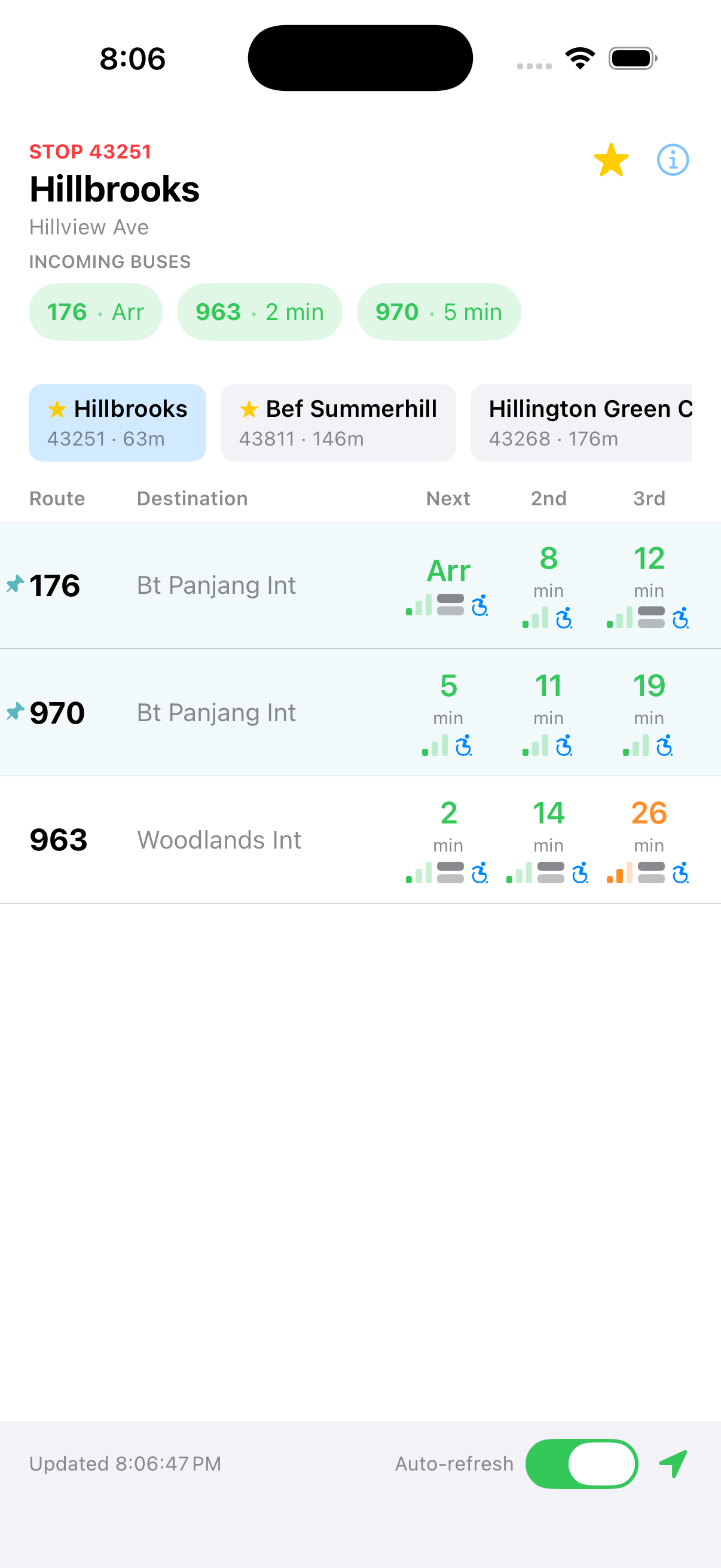
The board refreshes on its own every 30 seconds. Tap any row to see that service's full route on a map (see section 8).
3What the icons mean
Each arrival time carries small icons that tell you more about that specific bus.
How full the bus is (colour + bars)
The arrival time itself is also tinted with the same colour, so you can read crowding at a glance.
The kind of bus
No icon? A single-deck bus shows no vehicle icon, and an icon is only shown when LTA reports that detail for the bus.
4The "Incoming Buses" strip
Just under the stop name is a horizontal Incoming Buses strip, coloured pills showing the very next arrival for each service at a glance (e.g. 190 · 3 min). Swipe it sideways to skim what's coming without scrolling the full list. The pill colour follows the same crowding scale as above.
5Switching between nearby stops
The row of chips above the board are the bus stops nearest you, each showing its name, code, and distance. Tap any chip to switch the board to that stop instantly, handy when the stop you want is just across the road.
The chip for the stop you're currently viewing is highlighted.
6Searching for a stop
Tap the Search Bus Stop chip (with the magnifying glass) to open the search box. Type any of:
- a stop code (e.g. 83139),
- a stop name (e.g. Opp Orchard Stn), or
- a road name (e.g. Orchard Rd).
Results appear as you type. Tap one to jump the board to that stop.
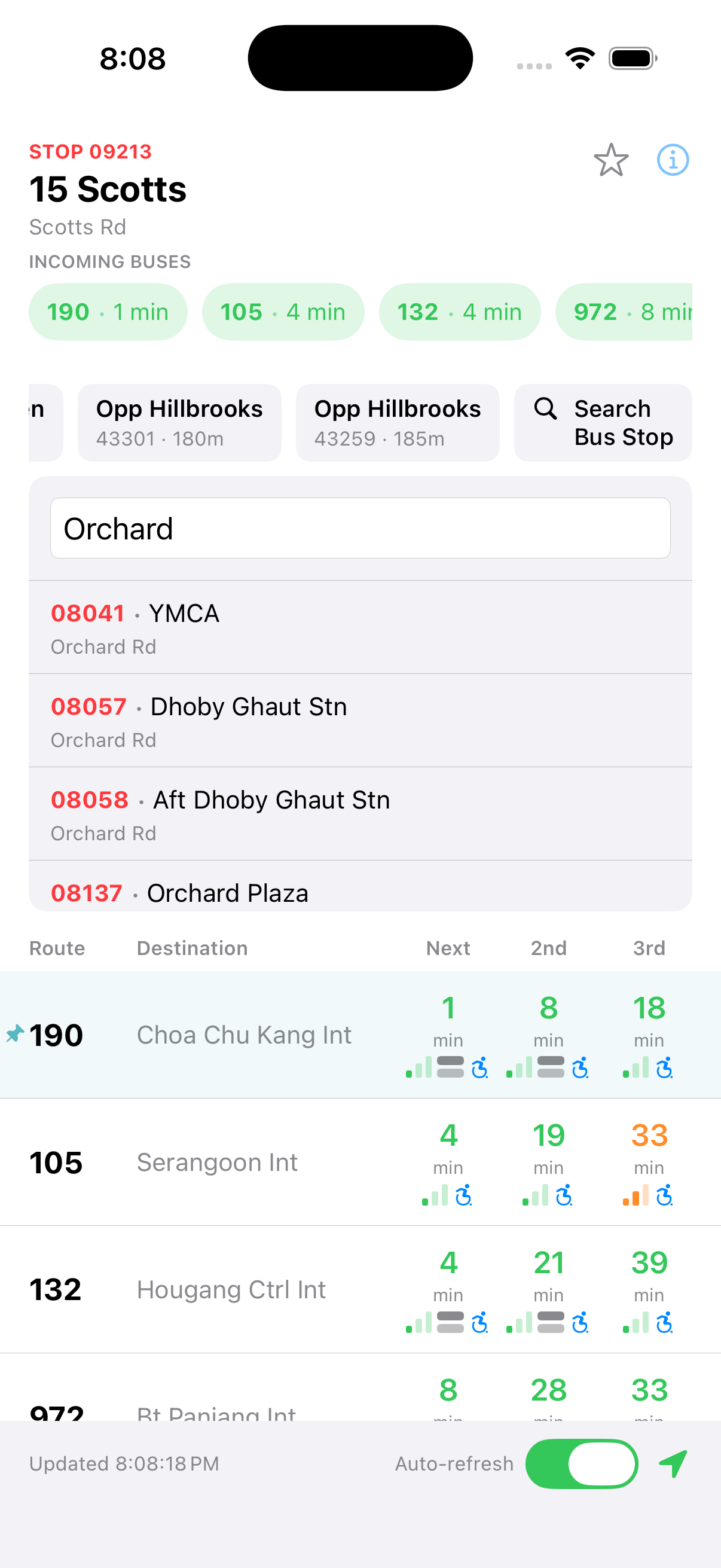
Fast search. Because the full stop list is stored on your device, results appear as you type. Live arrival times are then fetched over your connection.
7Pinning your regular buses
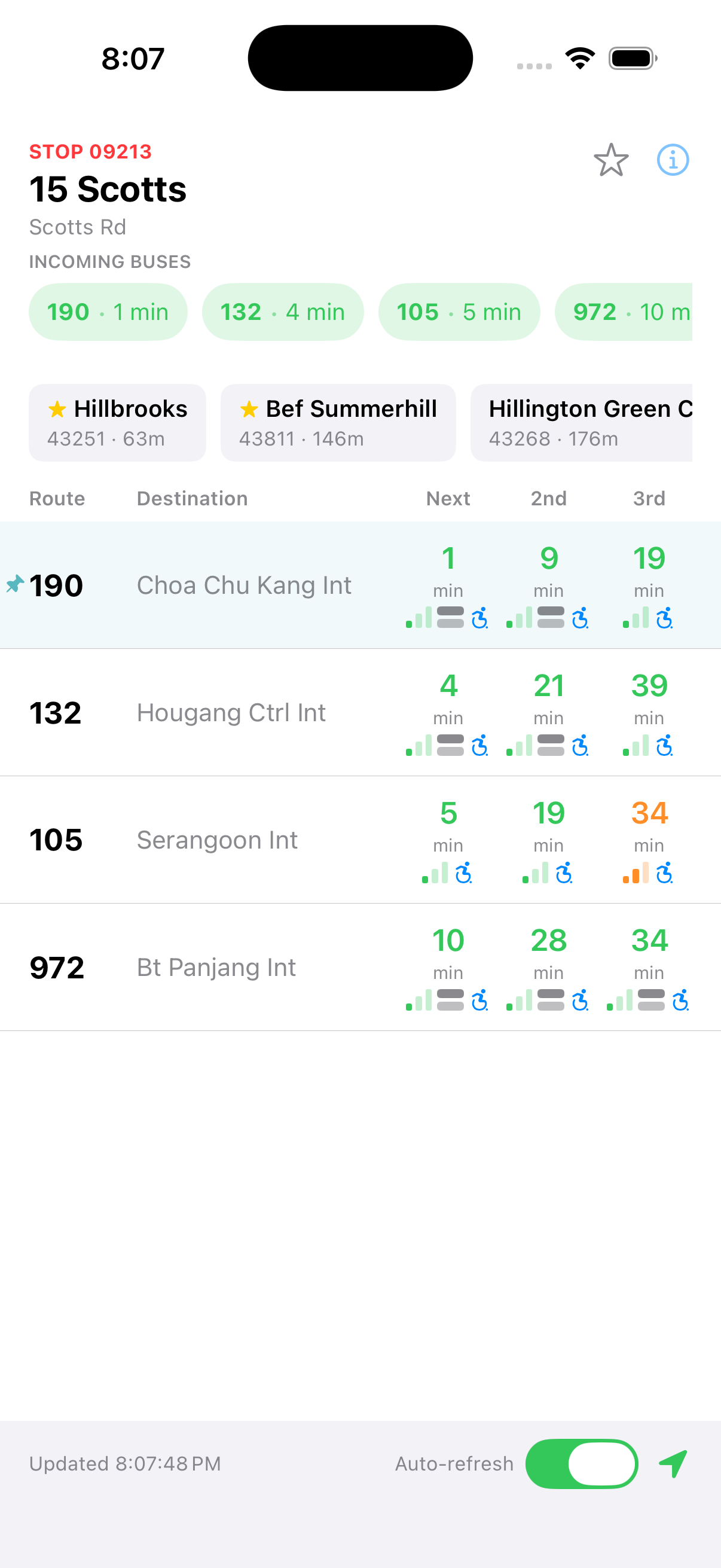
If you only care about one or two services at a busy stop, pin them so they always sit at the top of the board.
- Swipe a service row sideways to pin it.
- Pinned services jump to the top and show a small pin mark.
- Swipe again to unpin.
8The route & map view
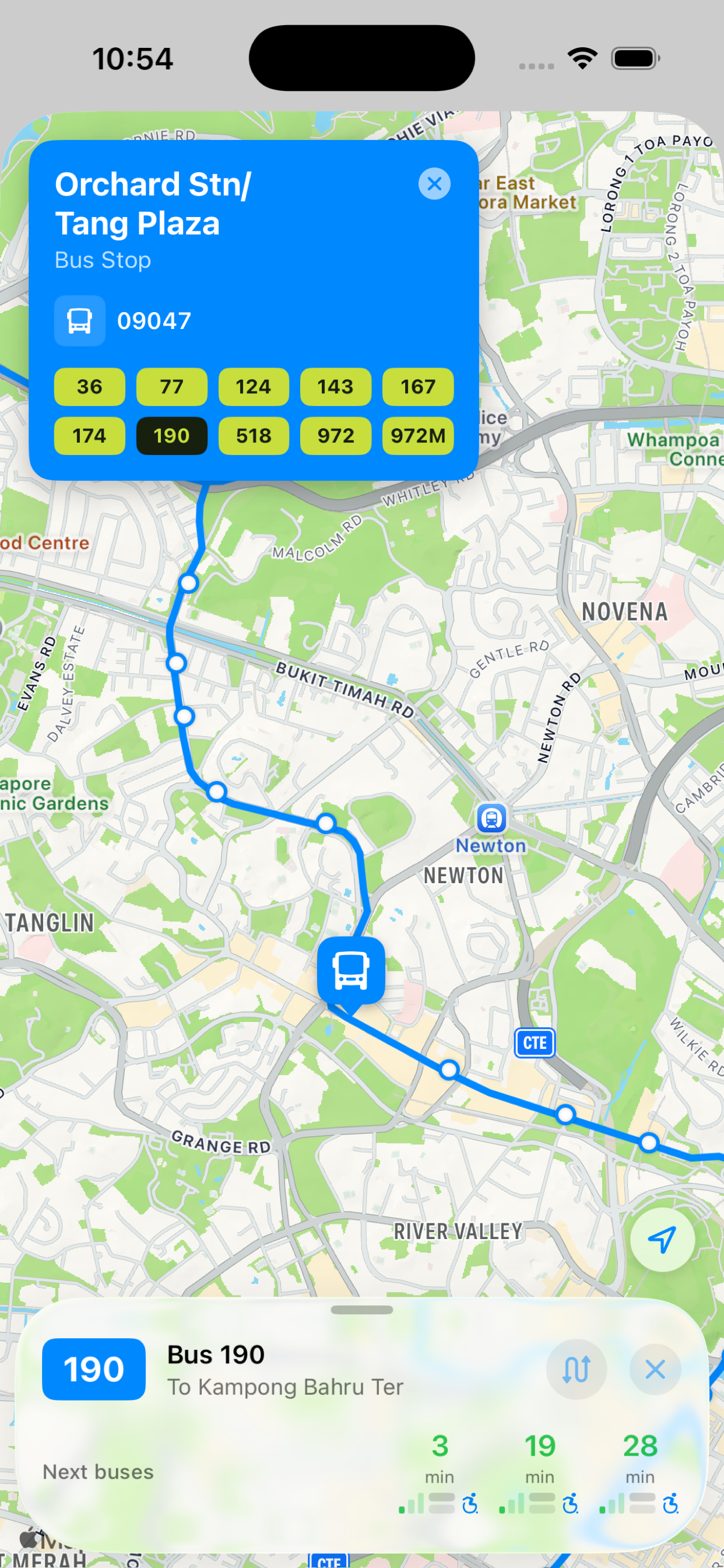
Tap any service row to open its full route on a map. Here you can:
- Follow the line: every stop the bus calls at, drawn along the road.
- Flip direction: switch between the two directions the service runs.
- Tap a stop on the route to see its next arrivals; tap its name to jump the board straight to that stop.
- Locate yourself: the locate button re-centres the map on you, and works like Apple Maps: tap again to rotate the map to the way you're facing.
9The Home Screen widget
Add a widget to see a favourite stop's live arrivals without opening the app.
- Favourite a stop first. The widget can only show a stop you've already favourited: open the stop's board and tap the star icon. (This is separate from pinning a service within a stop, see section 7.)
- Add the widget. From your Home Screen, long-press an empty area, tap the + button, search for SG Bus Arrivals, and add it.
- Choose a stop. Long-press the widget, tap Edit Widget, and pick from your favourited stops.
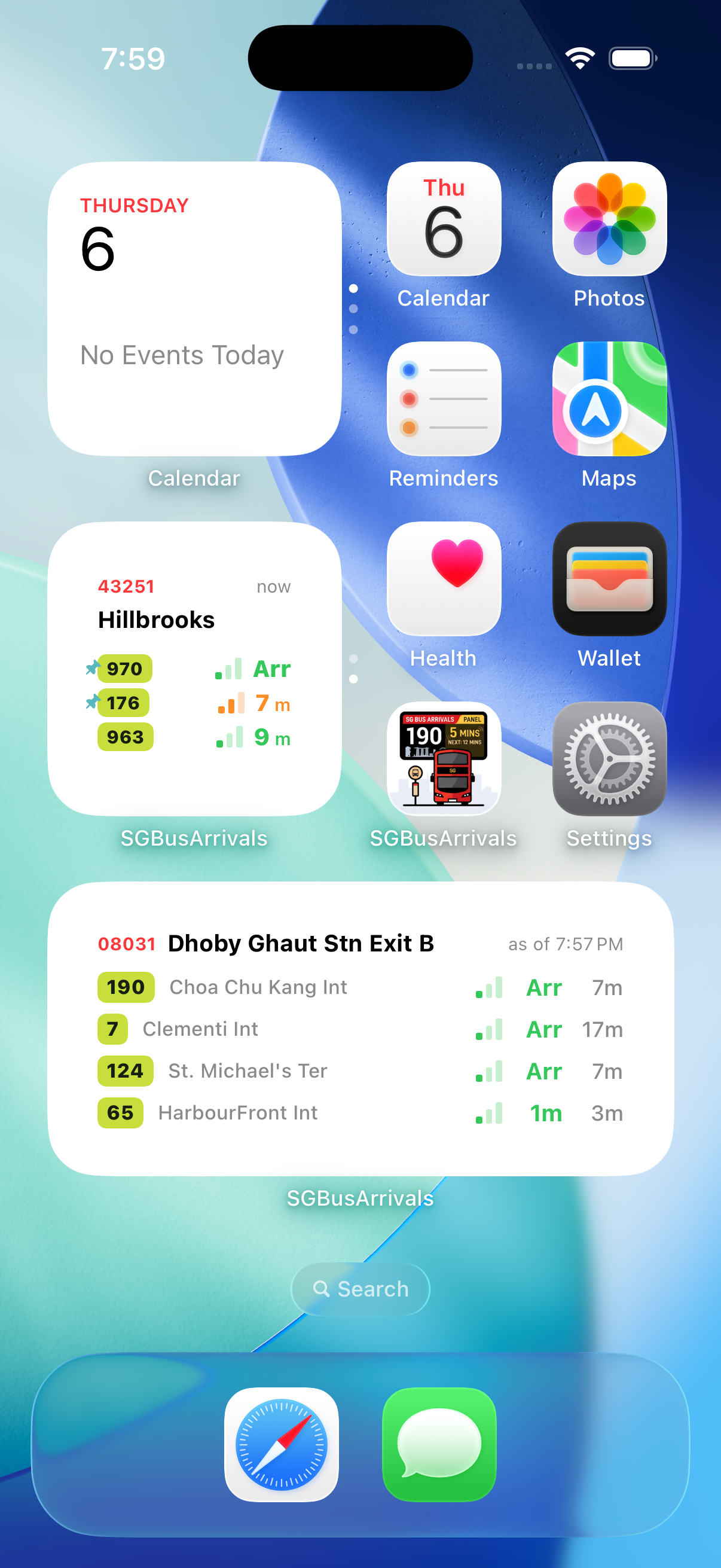
The widget refreshes roughly every 5 minutes and shows the same crowding colours as the board. Tap it to jump straight into the app at that stop.
Version 1.2.0 improves recovery of the selected stop after app updates. If you have multiple widgets of the same size and their saved selections are ambiguous, use Edit Widget to choose each stop again. Recovery is not guaranteed for every configuration and does not preserve data after uninstalling the app.
Empty widget? If you haven't chosen a stop yet in Edit Widget, it shows a placeholder prompting you to pick one, that's expected, not a bug.
10Refreshing & the location dot
At the bottom of the board:
- Auto-refresh: leave this on to have arrivals update every 30 seconds. Turn it off to save data or hold the current times.
- Last updated: tells you how fresh the times are.
- The location button: tap it any time to refresh now and re-check nearby stops. Its colour is a status light:
The icon spins while a refresh is in progress.
11Settings & cached data
Tap the gear button at the top-right of the board to open Settings. It lists what the app does, where the data comes from, and lets you refresh the on-device caches (the bus stop list and saved route maps) if something ever looks out of date. On iOS 26+, it also includes Siri & Shortcuts, with Ask Siri instructions, a starter shortcut, and nearby-distance controls.
Good to know: the app has no account and no ads, collects nothing about you, and the cached data holds no personal information. Deleting the app clears everything.
12Siri & Shortcuts
Requires iOS 26 or later. The main app and Home Screen widgets support iOS 17+.
Use Get Bus Arrivals to check a nearby stop or one you choose, with optional filters for several bus services.
Start with a ready-made shortcut
- Open SG Bus Arrivals and tap the gear button to open Settings.
- Under Siri & Shortcuts, tap Add Starter Shortcut.
- In the share sheet, choose Save to Files and save Nearby Bus Arrivals.shortcut.
- Open Files, find the saved file, and open it.
- Complete Add Shortcut in Shortcuts. The starter uses Current Location, Nearby mode, and Fetch Arrivals enabled.
Run it in Shortcuts, or activate Siri and say “Nearby Bus Arrivals”. If you rename the shortcut, say its new name. Siri must be enabled on your device.
Set your nearby range
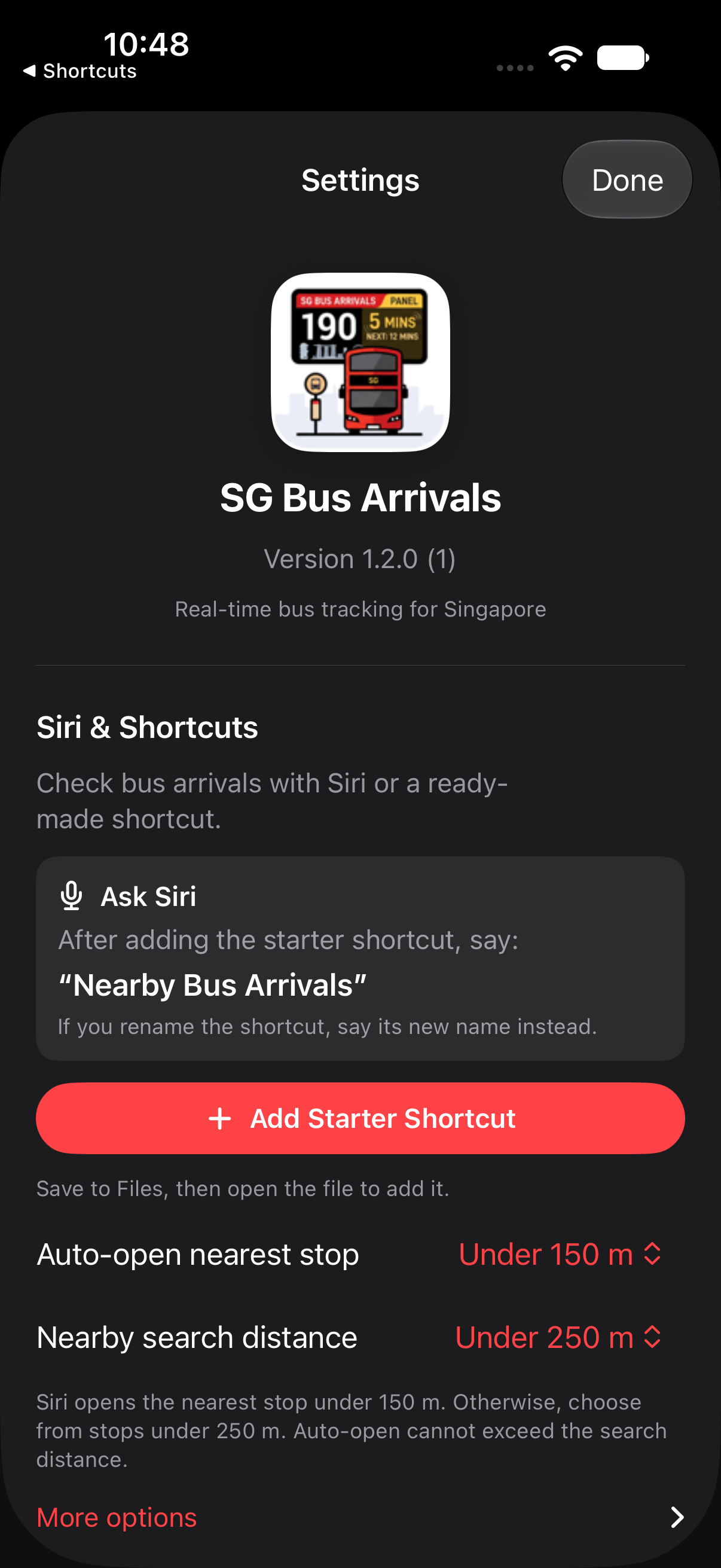
In Settings → Siri & Shortcuts, choose the distances used by the Siri/Shortcuts nearby action:
- Auto-open nearest stop: under 150 m by default. If the nearest stop is within this distance, its arrivals appear automatically in the result panel.
- Nearby search distance: under 250 m by default. Otherwise, choose from stops within this distance.
Both distances are configurable. Auto-open cannot exceed the search distance. Here, “auto-open” means showing the stop in the result panel; it does not automatically bring the main app to the foreground.
Use Nearby mode
In Get Bus Arrivals, set Find Stops to Nearby, leave Bus Stop unset, and use Current Location to search near you. Leave Fetch Arrivals on to see arrival estimates.
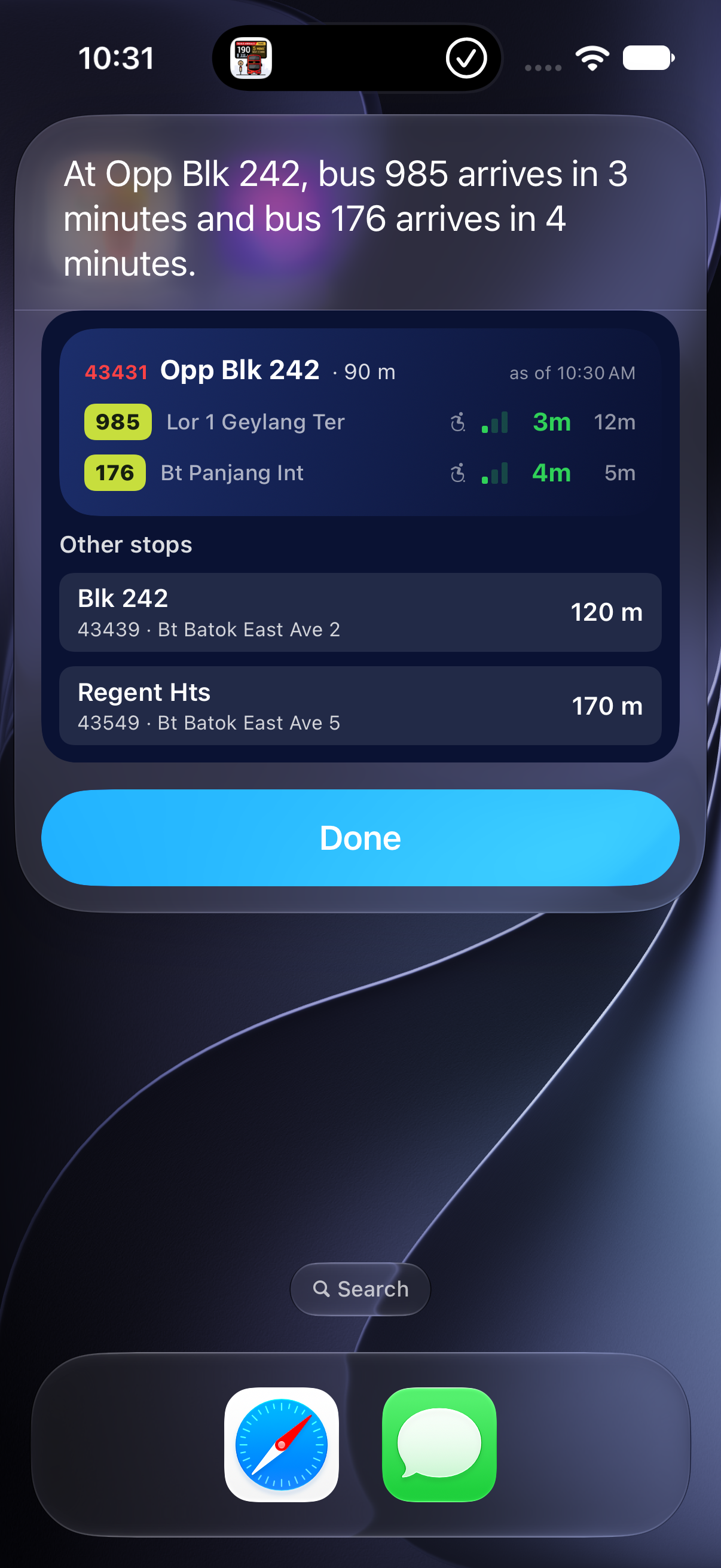
The panel includes up to two alternative nearby stops when available. Tap an alternative to change the displayed board. Tap the main arrivals card to open the displayed stop in the app.
Your stop. Your services.
- In Shortcuts, add SG Bus Arrivals’ Get Bus Arrivals action.
- Set Find Stops to At a Stop and select your Bus Stop.
- Select one or several Bus Services, or leave the selection empty to return all services at that stop.
- Keep Fetch Arrivals enabled and run the shortcut.
A fixed Singapore stop works without device location, even when you are outside Singapore. For example, choose 04167 / City Hall Stn Exit B.
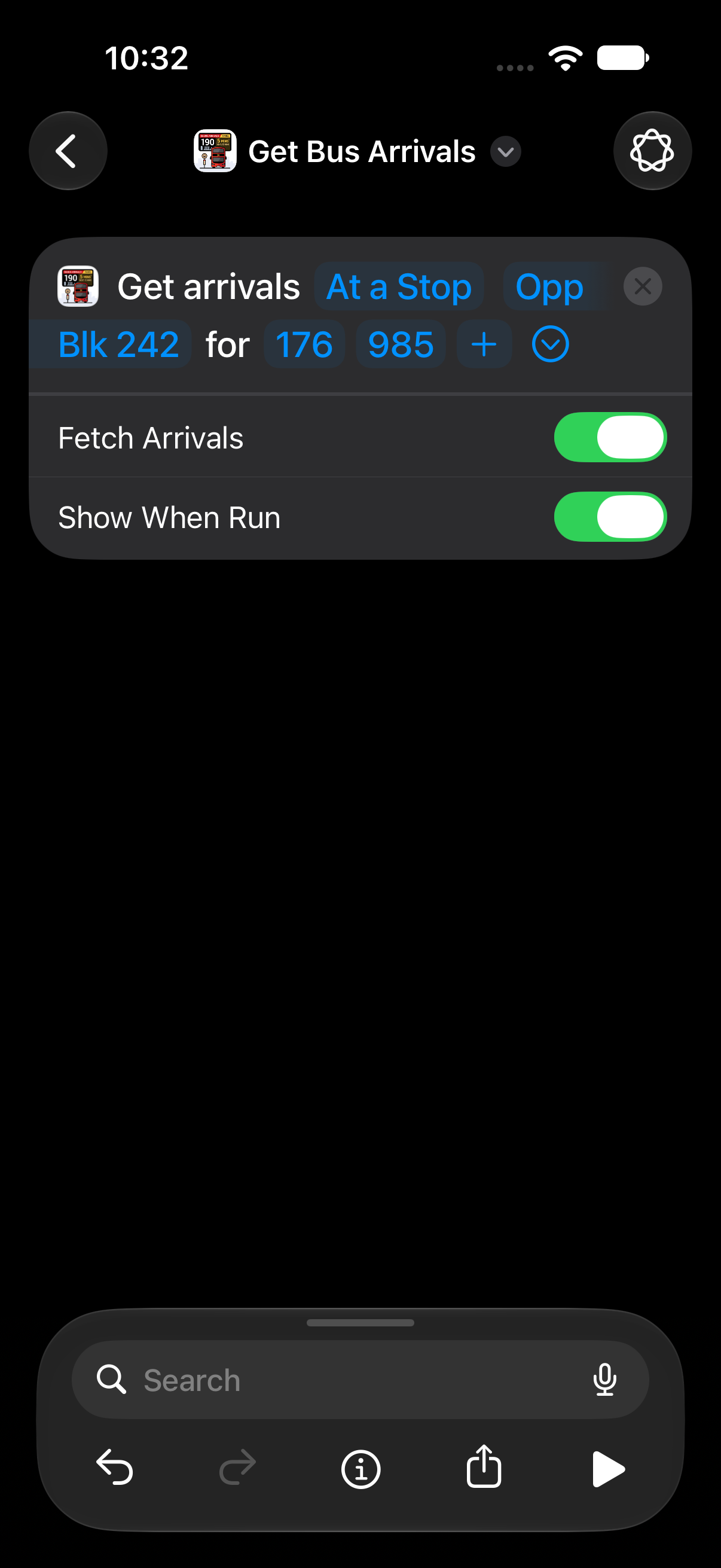
Using the output in another action? Without a Bus Services filter, the structured Shortcuts output includes every returned service. With a filter, it includes the matching services. The visual arrivals card shows a concise subset.
Stops only: in Nearby mode with Bus Stop unset, turn Fetch Arrivals off to return Stops to Choose From without arrival estimates. A later action can use a returned stop as its Bus Stop input. For a fixed stop, keep Fetch Arrivals enabled.
13Tips & troubleshooting
I cannot find Siri & Shortcuts in Settings
These controls require iOS 26 or later and SG Bus Arrivals version 1.2.0. They are hidden on older iOS versions; the main app and widgets continue to work on iOS 17+.
The starter did not appear in Shortcuts
Add Starter Shortcut opens a share sheet. Choose Save to Files, then open the saved Nearby Bus Arrivals.shortcut file and complete Add Shortcut in Shortcuts. Saving the file alone does not install it. If Siri cannot find it, run it from Shortcuts first, check that Siri is enabled, and use the shortcut’s current name.
Nearby cannot find a stop, or I am outside Singapore
Device-location search needs a location near a Singapore bus stop. Allow location access for SG Bus Arrivals and enable Precise Location in iOS Settings → Privacy & Security → Location Services. You can also increase the nearby search distance in the app’s Siri & Shortcuts settings.
Outside Singapore, use At a Stop with 04167 / City Hall Stn Exit B and Fetch Arrivals enabled; this does not need device location. To try Nearby remotely, supply a Location near City Hall Stn Exit B, Singapore (approximately 1.292500, 103.851453), with Bus Stop unset. The starter uses Current Location, so it will search near your device.
An arrival time shows a dash (—) or is missing
LTA occasionally can't locate a bus (it may be off-route or its GPS is briefly offline). The app shows exactly what LTA reports, so a gap here isn't an app bug, it usually fills back in on the next refresh.
Nearby stops look wrong
Tap the location button to refresh your position. If the dot stays orange or red, check that location access and Precise Location are enabled for the app in iOS Settings → Privacy & Security → Location Services.
Nothing loads at all
The app, widgets, and Siri/Shortcuts need an internet connection for live arrival estimates from LTA DataMall. Estimates also depend on service operating hours and the LTA feed; a service may have no estimate when it is not operating.
I want a specific stop every time
Search for it once, then pin the services you ride so they're always on top. The app also opens to your nearest stops automatically.