← All Apps
DisplayMode Menu app icon

DisplayMode Menu

A lightweight macOS menu bar app for switching display resolutions, with Shortcuts integration.

🟢 Custom favorites 🟢 Shortcuts integration 🟢 macOS 13+ 🟢 Signed & notarized 🟢 Free & open source
Download latest release → Signed & notarized, opens right away. Read the user guide
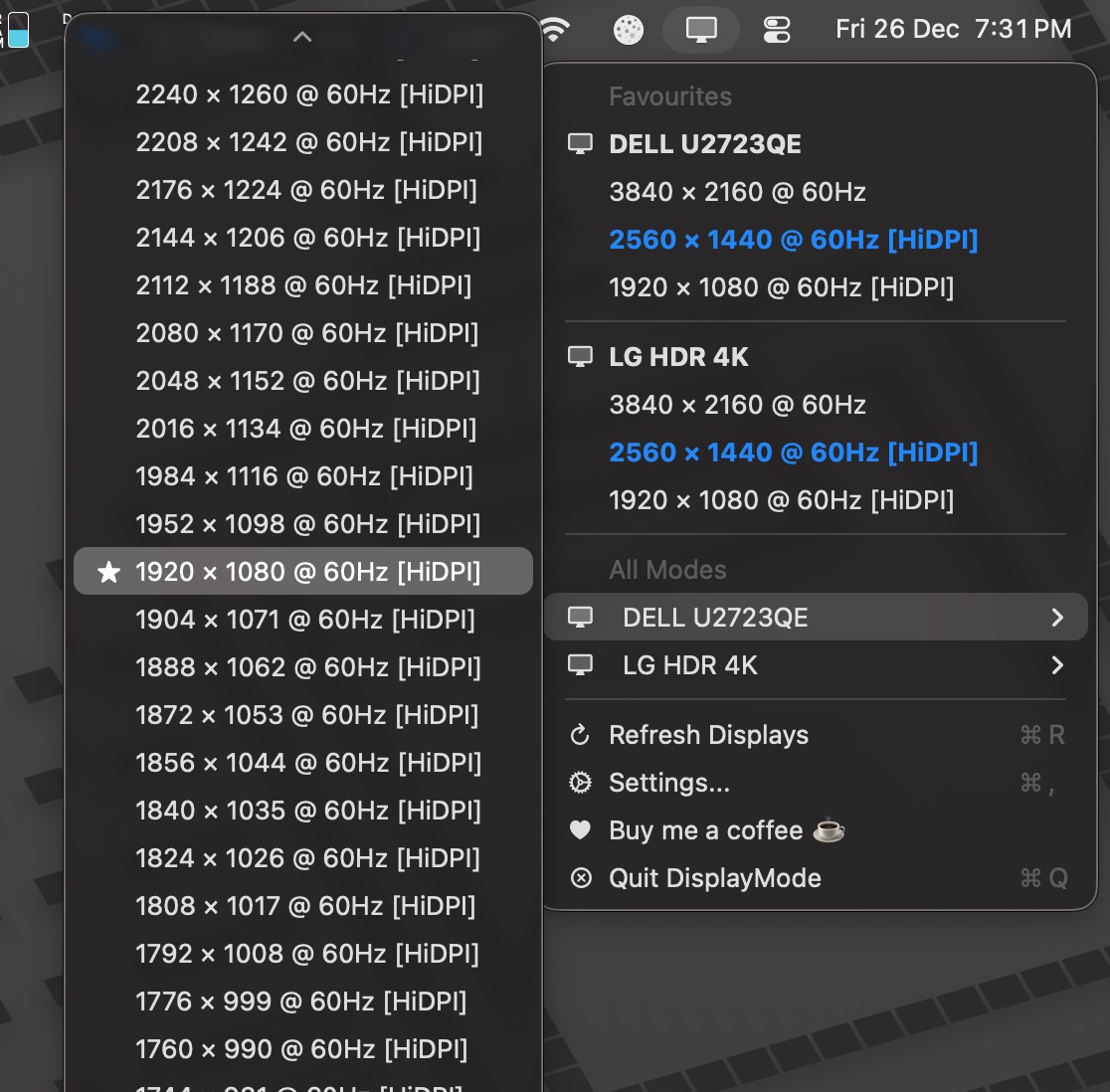
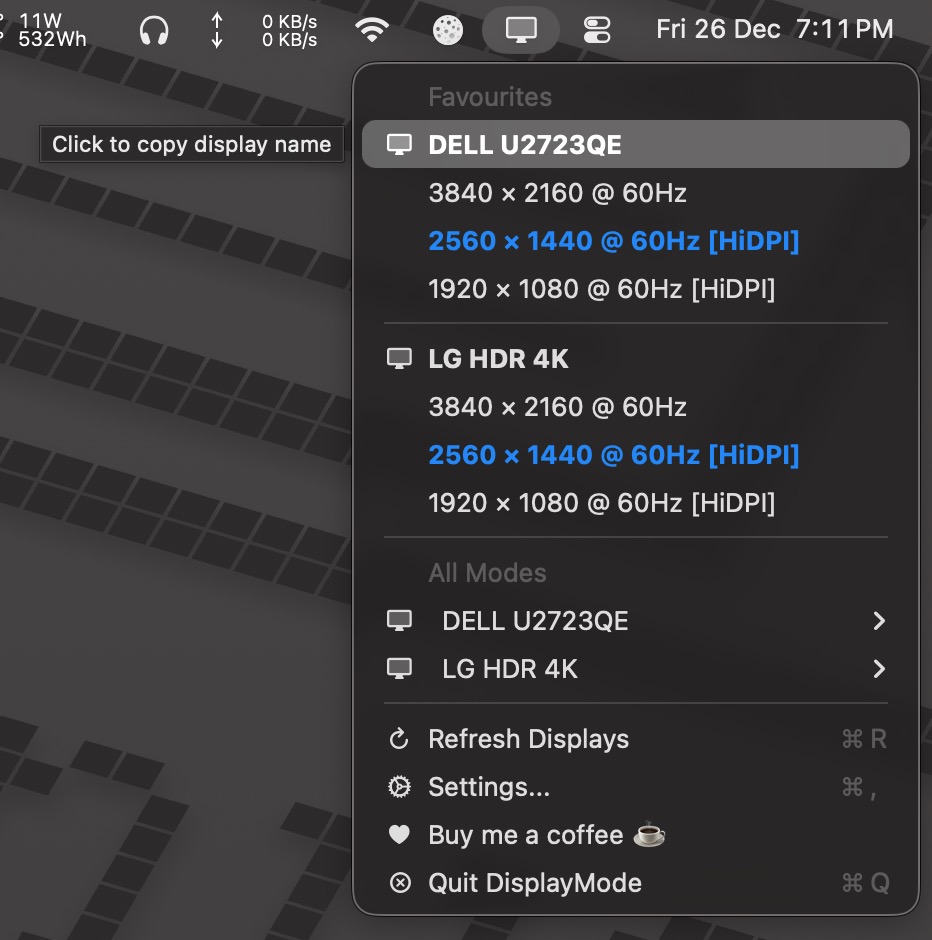
DisplayMode Menu bar dropdown showing favorite display modes with the current mode highlighted in bold blue
Favorites, right in the menu bar
Menu bar dropdown with a display name being copied to the clipboard
Click a display name to copy it
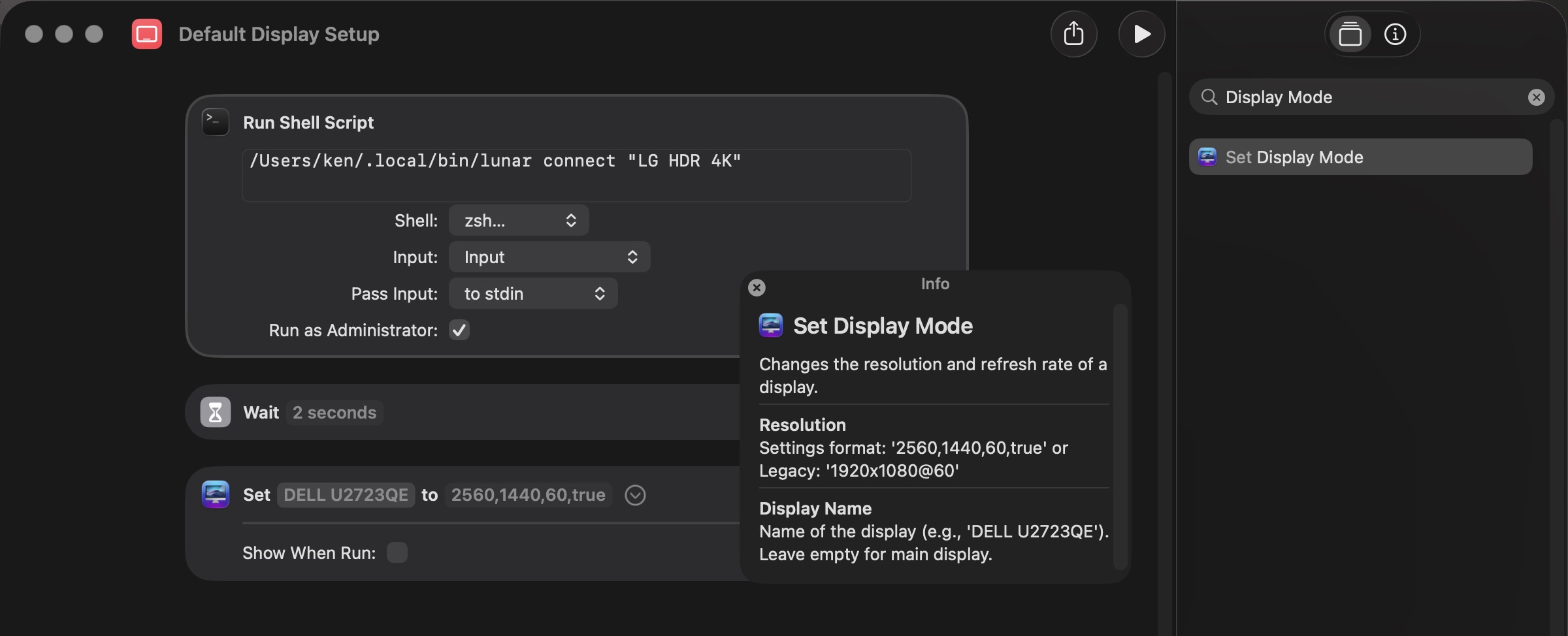
Shortcuts app configured with the Set Display Mode action and resolution parameters
Set Display Mode in Shortcuts
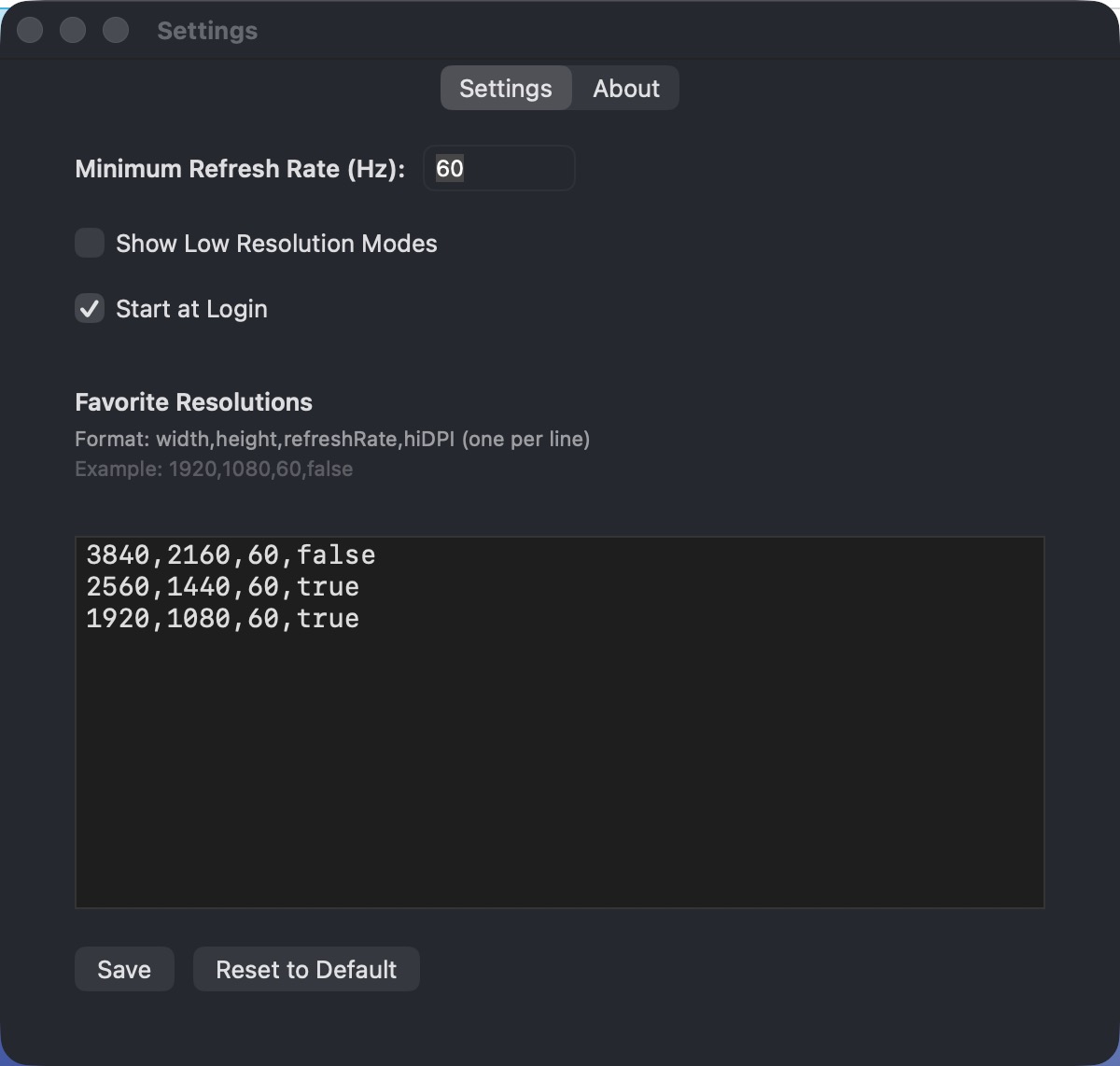
Settings window showing minimum refresh rate, start at login, and a list of favorite resolutions
Configure your favorites

Built for one job

⭐

Customizable Favorites

Configure your preferred display modes in Settings, comes with 22 default resolutions to start from.

🖥️

Smart Display

The current mode is highlighted in bold blue, and clicking a display's name copies it to your clipboard.

📋

Per-Display Submenus

All modes are organized by display, filtered by refresh rate (≥60Hz by default).

⚡

Shortcuts Integration

Set a display mode from the Shortcuts app or a keyboard shortcut, with dual-format support.

Why DisplayMode Menu?

It's built to do one thing well: switch display resolutions fast, without digging through System Settings.

Requirements & setup

Requires macOS 13 (Ventura) or later. Releases are signed and notarized, so after moving the app to /Applications it opens normally, no extra steps needed.

If you ever see a quarantine warning (e.g. after a manual copy), clear it once with xattr -cr /Applications/DisplayModeMenu.app. See the user guide for the full walkthrough.

Support

Contact

Found a bug or have a feature request? Reach out and we'll get back to you.

contact atpeaz com

If DisplayMode Menu saved you a trip through System Settings, a coffee (well, kopi-o-kosong) is always appreciated.

QR code linking to Ken Ng's Buy Me a Coffee page

Frequently asked

Do I need to allow anything to open the app?

No. Releases are signed and notarized, so the app opens normally right after you move it to /Applications. If you ever see a quarantine warning, clear it once with xattr -cr /Applications/DisplayModeMenu.app. See the user guide for details.

How do I set a display mode from a Shortcut?

Add the "Set Display Mode" action in the Shortcuts app, then enter a resolution like 2560,1440,60,true (copy this format straight from the app's Settings favorites) or the legacy 1920x1080@60 format. Leave Display Name empty for your main display.

How do I target a specific display?

Click that display's name in the menu bar dropdown to copy it, then paste it into the Shortcut's Display Name field.

Is this on the Mac App Store?

No. It's open source and distributed as a direct download from GitHub. You can also build it yourself from source.